
How to Log In to Your X (Twitter) Account: 2FA Key or auth_token
October 6, 2026
BuyXAccounts Support Desk· Customer support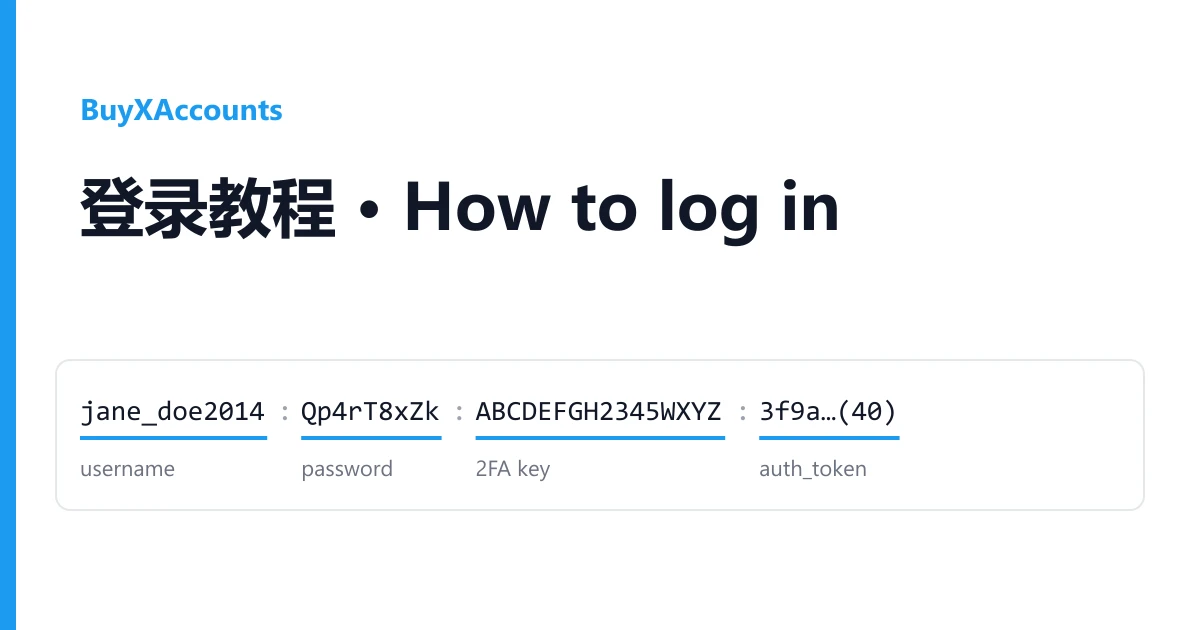
Your X accounts are on your order page, not in your email. Open Dashboard → Orders, pick the order, and the box called Delivered accounts holds one account per line. Copy credentials copies all of it; Download saves it as a text file.
An X line is long. It can carry ten fields, several of which are tokens that look like random noise. You only need two or three of them to sign in. The rest are there for tools and for recovering the mailbox.
Recognise each field by its look
Fields are separated by :, | or ----, and some batches mix them on one line. Match each piece to this table.
| Field | What it looks like | What you do with it |
|---|---|---|
| Username | Always first. The handle without the @ | Type it into the X login box |
| Password | Right after the username | The X password |
| Email and email password | An Outlook, Hotmail or other address, usually followed by its password | The mailbox registered on the account, where X sends confirmation codes |
| Phone | A number with a country code, such as +6281300000000 | The number on the account. You cannot receive its SMS |
| 2FA key | 16 capital letters and digits 2 to 7: ABCDEFGH2345WXYZ | Turns into the 6-digit login code (see below) |
| auth_token | Exactly 40 characters, digits and letters a to f only | Signs you in without the password (see the token section) |
| ct0 | Exactly 160 characters, digits and letters a to f only | Used by some automation tools. You do not need it to sign in |
| Mail refresh token and client ID | A very long string starting with M.C5, then an ID like 9e5f94bc-e8a4-... | For mail tools that read Outlook through Microsoft's login. Ignore them if you do not use one |
Real shapes from recent orders
Values below are made up and shortened. The order of fields is what our customers actually received.
jane_doe2014----Qp4rT8xZk----jane88@hotmail.com|mailpass12|M.C513_BAY.0.U.Msa...|9e5f94bc-e8a4-...----ABCDEFGH2345WXYZ----3f9a...(40)
username · password · email | email password | refresh token | client ID · 2FA key · auth_token

oldhandle:Hk29xLm4:+6281300000000:5e15...(160):3fd3...(40)
username · password · phone · ct0 · auth_token

oldhandle:Hk29xLm4:mail@example.com:ABCDEFGH2345WXYZ:5739...(160):8e6c...(40)
username · password · email · 2FA key · ct0 · auth_token
Notice the second line: no 2FA key and no mailbox. Accounts like that are meant to be opened with the auth_token.
Method 1: username, password and the 2FA key
- Go to x.com, choose sign in, and enter the username and the password.
- X asks for a 6-digit code. Open the checkkit 2FA code generator, paste the 2FA key and press the button.
- Type the 6 digits into X. The code changes every 30 seconds, so if it is rejected, generate a fresh one.
If X instead sends a code to the email, sign in to the mailbox with the email password from your line (outlook.live.com for Outlook and Hotmail) and read it there.
Method 2: sign in with the auth_token
The auth_token is a saved X session. With it you skip the password, the 2FA code and the email check entirely. Honestly, for a first sign-in it is the least troublesome way in. It takes five steps and a free browser extension.
Step 1: Add X Token Login to your browser
Open X Token Login in the Chrome Web Store and click Add to Chrome. It works in Chrome, Edge and other Chromium browsers. Install it from that store page only. A copy from anywhere else can read the token you paste into it.
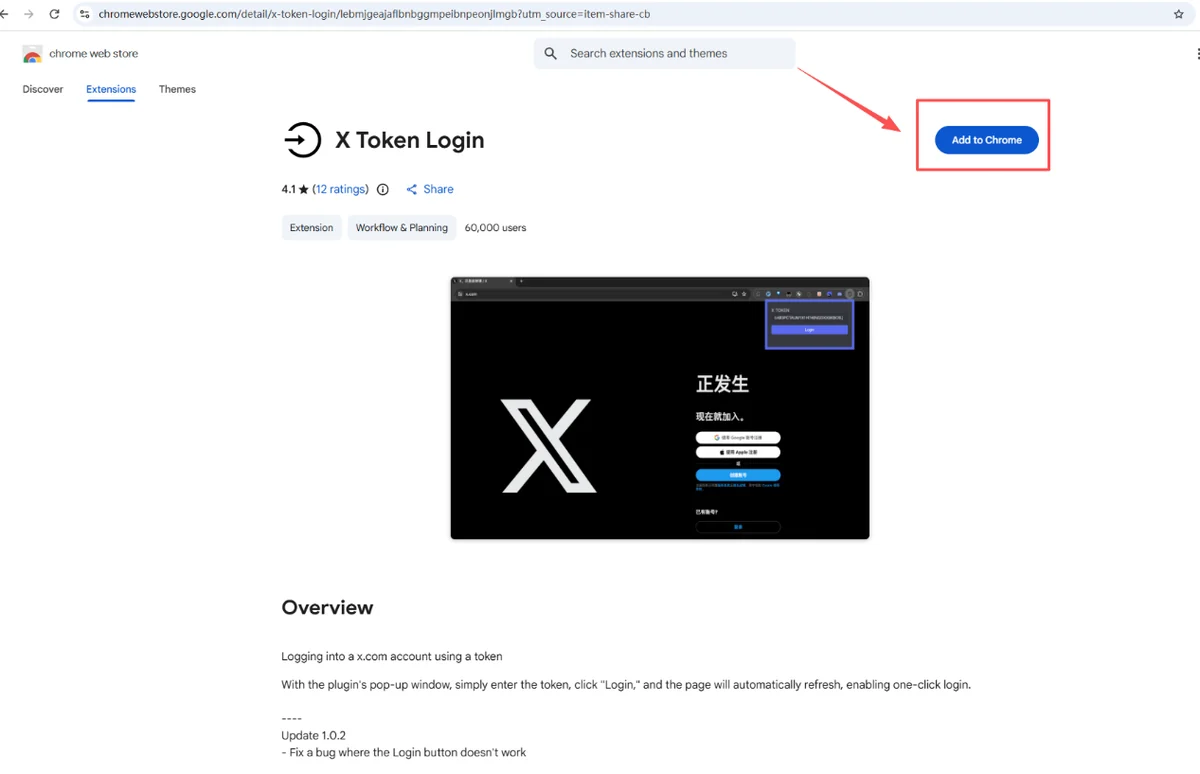
Step 2: Pin it to the toolbar
In the pop-up, click Add extension. Then click the puzzle-piece icon at the top right of the browser and pin X Token Login, so its icon stays on the toolbar for next time.
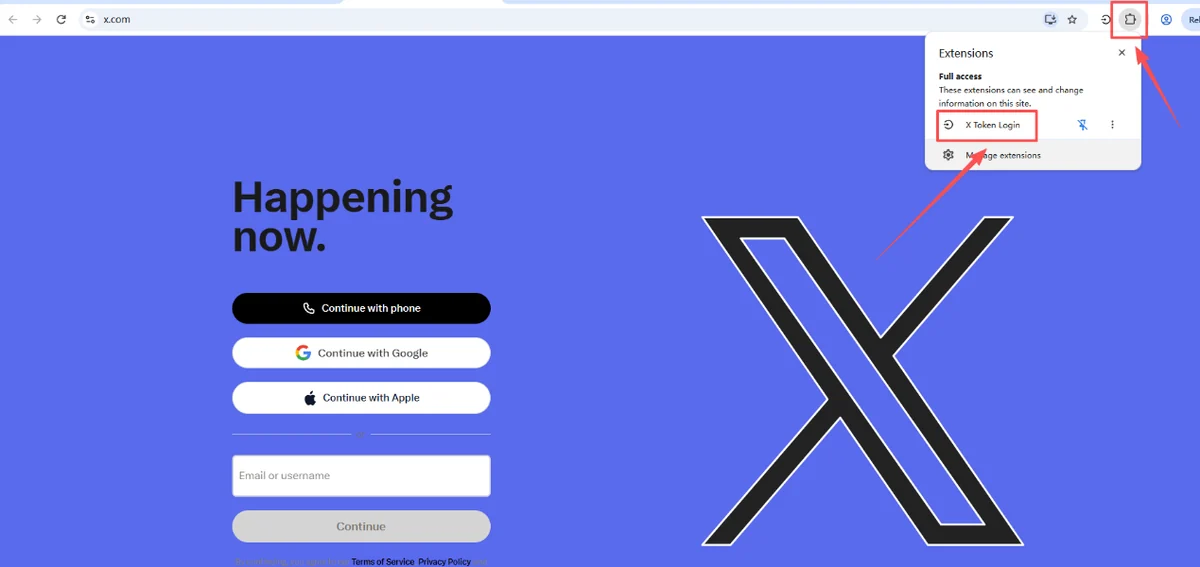
Step 3: Copy the auth_token
On your order page, find the field of exactly 40 characters, digits and letters a to f only. In the formats above it is the last field of the line. Copy those 40 characters and nothing else: no space before or after, no colon, no part of the ct0. If you paste the ct0 or the whole line, the extension cannot sign you in.
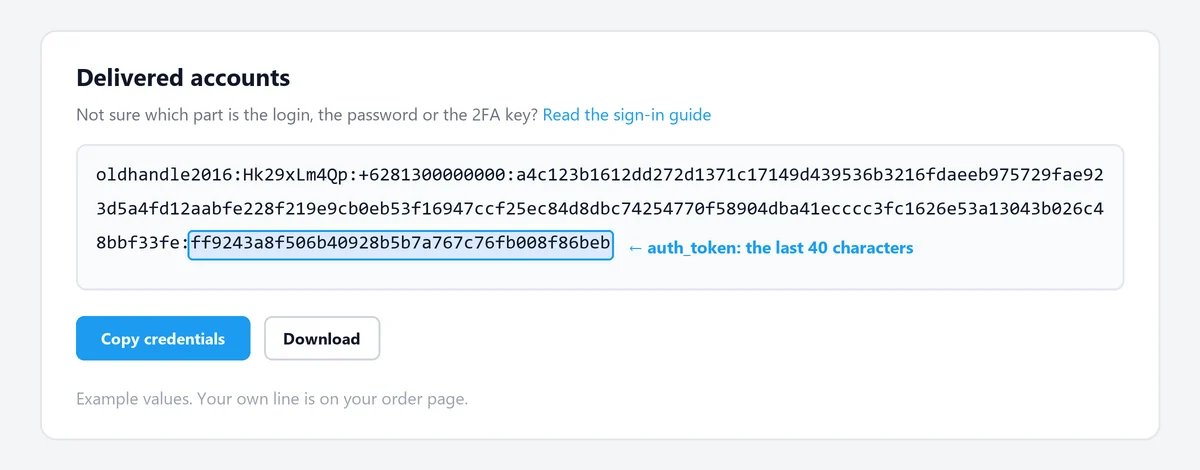
Treat the token like a password. Whoever has it is inside the account, so do not paste it into websites or send it to anyone.
Step 4: Paste it on x.com
Open x.com in the same browser. You can stay on the sign-in screen; you do not fill it in. Click the X Token Login icon on the toolbar, paste the token into the box and click Login.
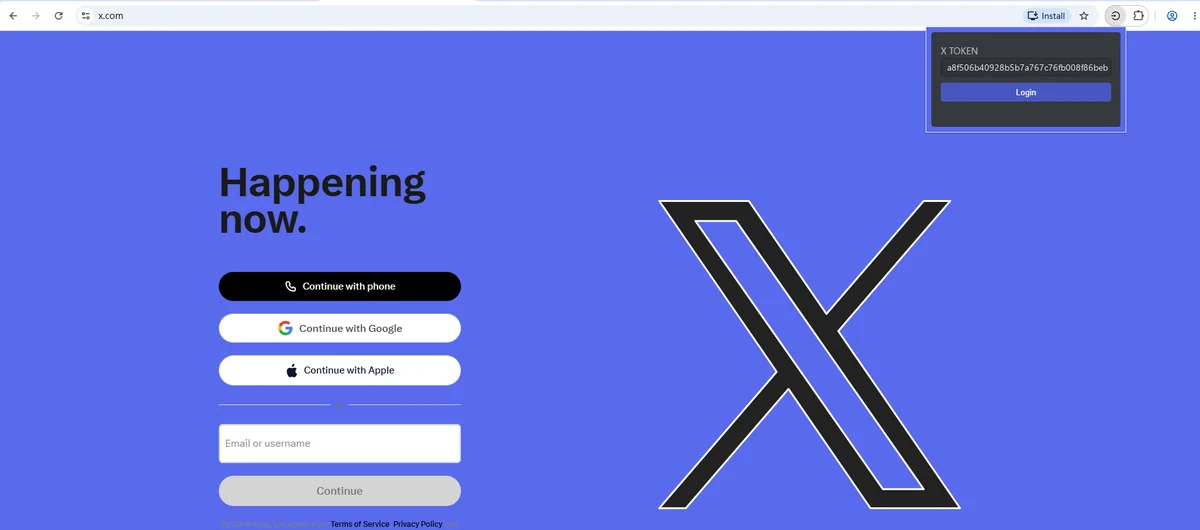
Step 5: Check that you are in
The page refreshes by itself. If you now see the account's home timeline, you are signed in. If you are still on the sign-in screen, refresh once more, then see "The token does not sign me in" below.
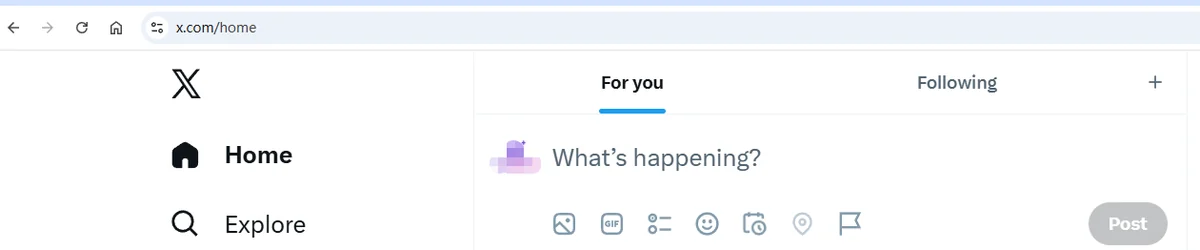
Before you change anything
X watches for an account that suddenly moves to a new country, new device and new password all at once. That combination is what gets a fresh sign-in locked. For the first days, use the account from one browser and one connection, and leave the password, email and phone as they are. If you later change the password, X may ask for a code from the email or the 2FA key, so keep both.
When something goes wrong
"Wrong password"
Check you copied only the second field, and that nothing from the next field came along. With ---- lines it is easy to grab a dash.
The 2FA code is rejected
Set your device clock to update automatically and generate a new code. A clock a minute off produces codes X rejects.
I cannot find the extension icon
Click the puzzle-piece icon at the top right of the browser, find X Token Login in the list and pin it to the toolbar.
The token does not sign me in
Count what you pasted: it must be exactly 40 characters. A space, a colon or a piece of the ct0 is enough to make it fail. If the 40 characters are right and you still land on the sign-in screen, the session behind the token has ended. Use Method 1 if your line has a password and 2FA key; if it does not, open a ticket.
X shows a puzzle or says the account is locked
Complete the puzzle. If X asks for a phone number you do not have, stop and open a ticket rather than trying again and again.
The account does not work at all
Open a ticket from the order page within the guarantee period shown on the product, say which line failed and attach a screenshot of the error.